How to Convert a Bank Statement PDF to CSV and Check the Results
October 27, 2026 · Mirza Arham
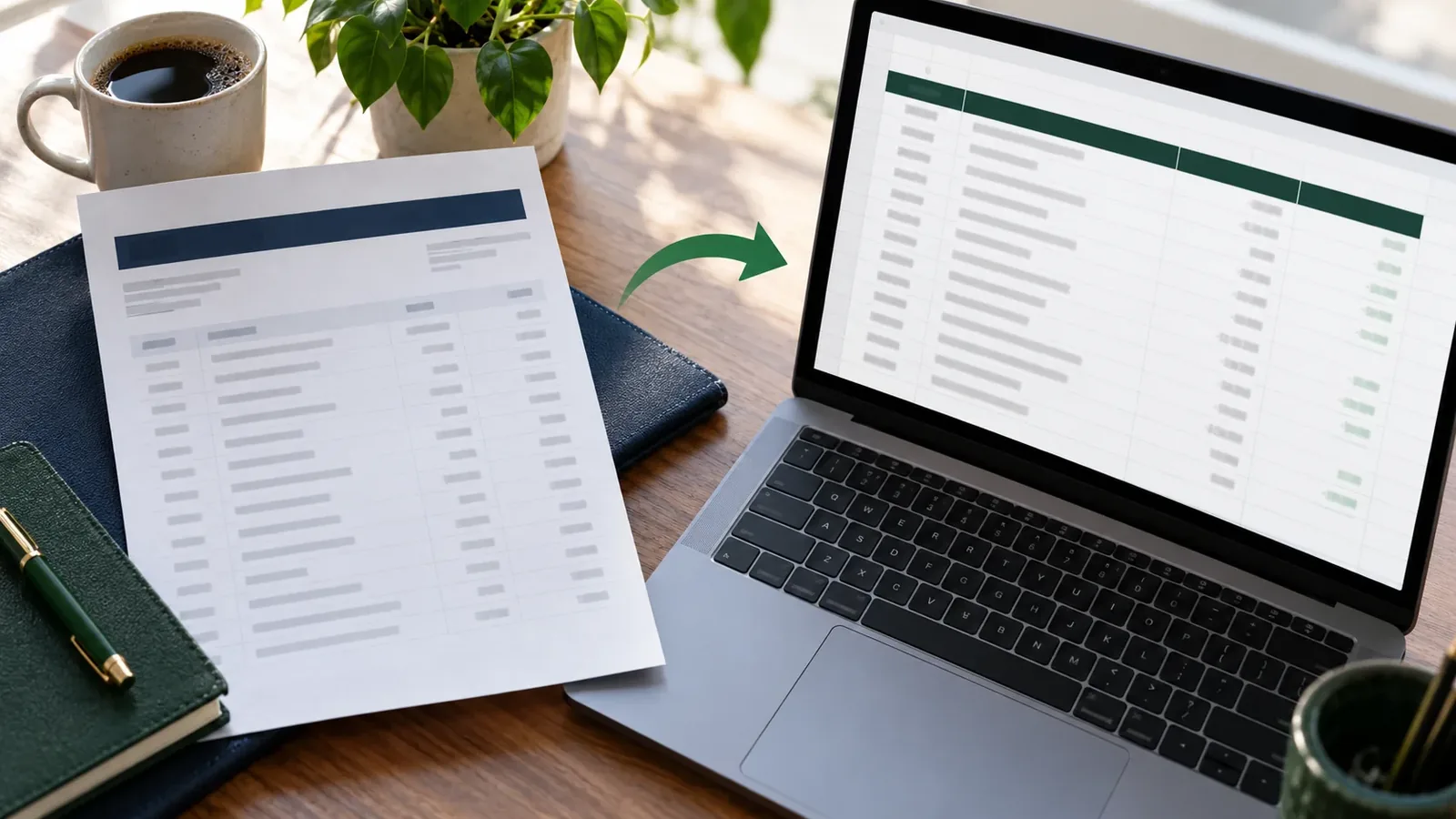
A PDF is good for reading a statement, but awkward for filtering transactions or reconciling a ledger. A CSV gives you one row per transaction in a format that spreadsheet and bookkeeping tools can read. The critical step is checking the extracted rows against the original statement before you rely on them.
First, check what kind of PDF you have
Open the statement and try to select a transaction description with your cursor. If the words can be selected, the PDF probably has a text layer and is a good candidate for this converter. If the entire page behaves like one picture, it is a scan; the PDF-to-CSV tool does not run OCR on scanned pages.
- Download the original statement PDF from your bank when available. It is usually cleaner than a phone photo or print-to-PDF copy.
- For a scanned statement, obtain a digital statement or use OCR first, then compare every line with the original.
- Keep the original PDF as your reference throughout the conversion.
Convert the statement in five steps
- Open the free PDF-to-CSV converter. No site account is needed.
- Drag in a text-based PDF or choose it from your device. The parser reads the file in your browser.
- Review the extracted table, especially the first and last transactions and any wrapped descriptions.
- Use Edit Results to correct a cell or exclude a non-transaction row.
- Choose CSV (Universal) and select Export. Save the original PDF alongside the CSV for reconciliation.
Open the free PDF-to-CSV converter
What a useful CSV should contain
At minimum, look for a date, a description, and an amount or separate debit and credit values. A balance column is helpful when the statement supplies one. Names vary by bank, so focus on the meaning of each column rather than a particular heading.
| Date | Description | Debit | Credit | Balance |
|---|---|---|---|---|
| 2026-10-02 | Office supplies | 24.50 | 975.50 | |
| 2026-10-04 | Client transfer | 250.00 | 1225.50 |
This is illustrative data. For a withdrawal, the balance should fall; for a deposit, it should rise. The sign convention of an Amount column can differ, so check it before importing elsewhere.
A two-minute quality check
- Compare the number of transaction rows with the original statement. Do not count headings, opening balances, or page totals as transactions.
- Check the first and last dates. Missing pages and cut-off rows are easy to spot at the edges.
- Spot-check a withdrawal and a deposit to confirm their signs and columns.
- If balances are present, compare several consecutive rows and the closing balance with the PDF.
- Look for duplicate transactions around page breaks and multi-line descriptions split into separate rows.
When the result needs another format
The same preview can be exported as an Excel workbook. For accounting software, check its preferred bank-feed format first. QuickBooks Online can accept a correctly formatted CSV; QBO exports need valid bank and account identifiers, and import support varies by institution.