How to Open a QBO File in Excel Without Losing Transaction Rows
October 27, 2026 · Mirza Arham
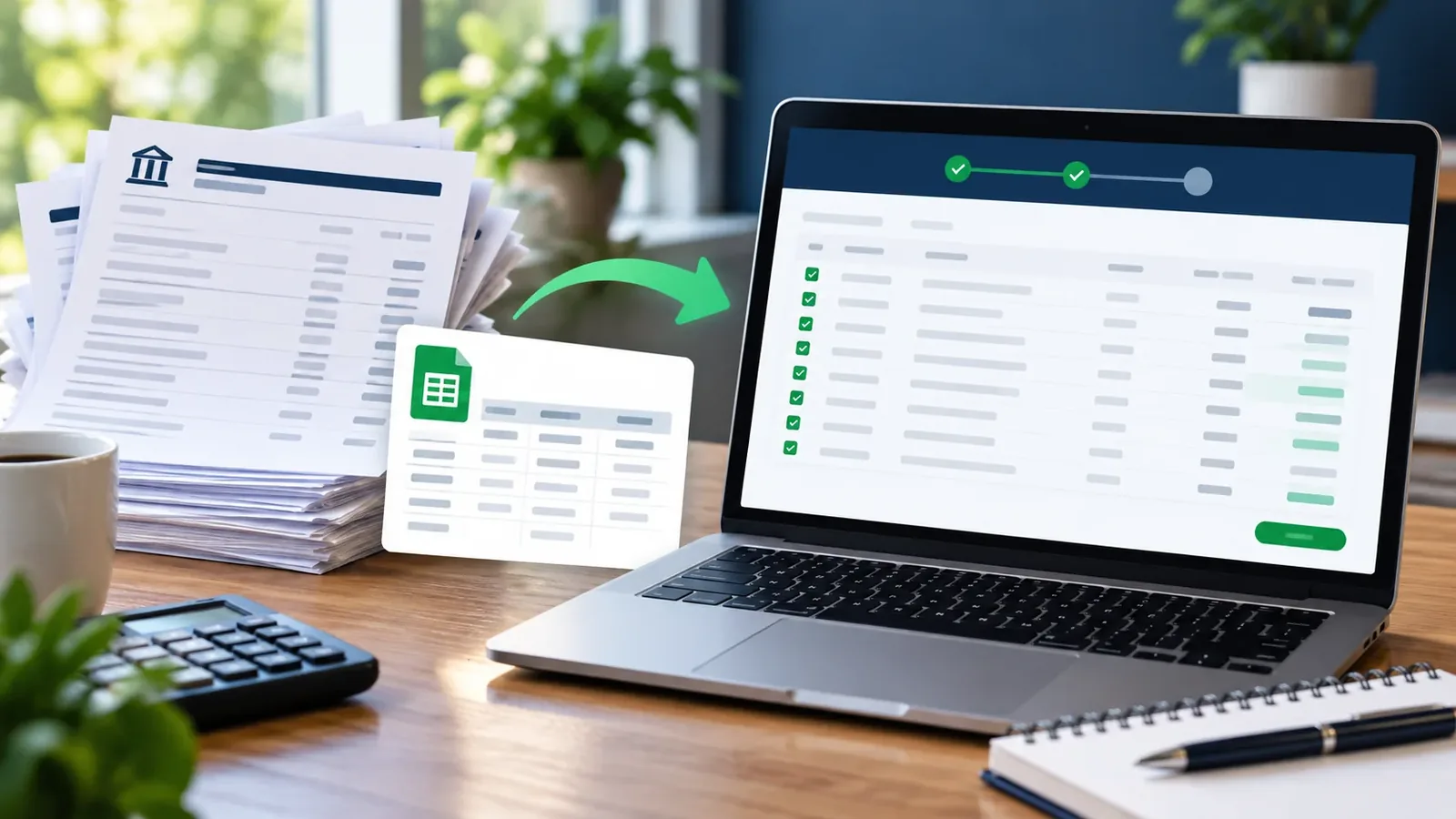
A .qbo file is designed for a bank-feed import, not as a spreadsheet. Opening its raw text directly in Excel shows tags rather than a useful transaction table. Convert it first, then inspect the resulting columns before doing calculations.
Convert QBO to a table
- Open the QBO-to-CSV converter.
- Add the .qbo file, or an .ofx file if that is what the bank supplied.
- Review the parsed rows. The preview includes date, description, amount, check number, transaction ID, type, and memo when available.
- Use Edit Results to correct a visible value or exclude a row if needed.
- Choose CSV for a portable text table or Excel (.xlsx) for a workbook, then export.
Open the QBO-to-CSV and Excel tool
What to verify in Excel
| Column | Why it matters |
|---|---|
| Date | Check that Excel did not reinterpret day and month |
| Amount | Confirm withdrawals are negative and deposits positive |
| Reference / FitId | Useful for spotting repeated bank-feed transactions |
| Description | Look for truncated or empty merchant names |
Keep the original QBO file. If you later import the spreadsheet into another program, match its required column layout rather than assuming the exported table is an import-ready template for every product.
QBO, CSV, or Excel?
Use QBO when a compatible bank-feed importer accepts the file. Use CSV when you need a simple text table or manual column mapping. Use XLSX when you want workbook features such as filters and formulas. This conversion does not change transactions on your bank account.