Scanned Bank Statement to CSV: What to Do When the PDF Has No Text
October 27, 2026 · Mirza Arham
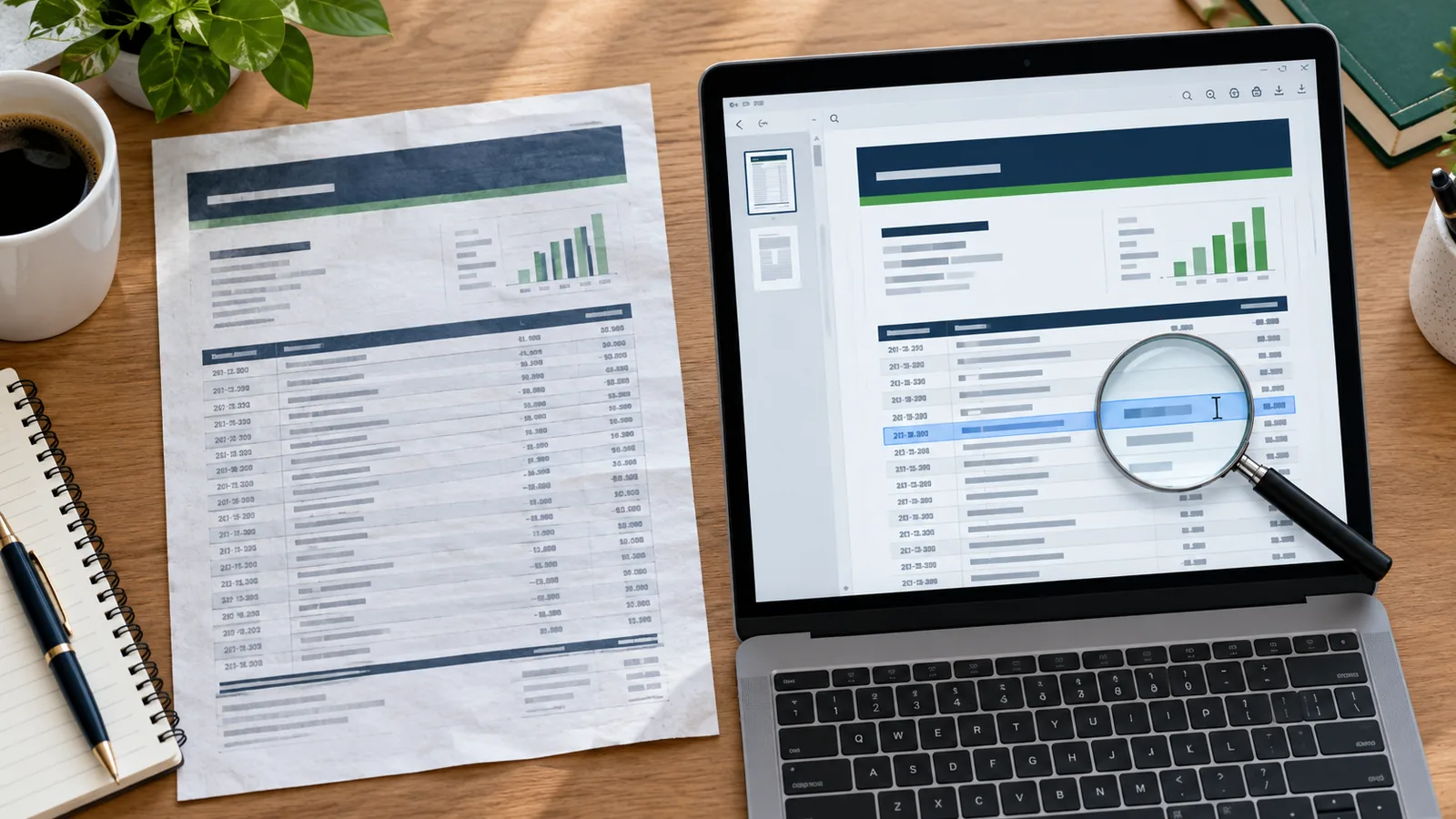
A PDF is only a container. Some bank statements contain real selectable text; others contain photographs of pages. A text parser can extract the first kind, but a scan needs optical character recognition (OCR) before transaction rows can be read. The PDF-to-CSV tool on this site currently supports text-based statement PDFs, not image-only scans.
Test the PDF before converting
- Open the PDF in a viewer.
- Try selecting one transaction description, not the entire page.
- Copy it into a text editor. If it pastes as words and numbers in the right order, the PDF has a useful text layer.
- If nothing can be selected, or copied text is scrambled, treat the file as a scan or a damaged text layer.
The cleanest fix: get the original digital statement
Before running OCR, check your bank portal for a downloadable statement PDF or a transaction CSV covering the same period. A native transaction export often saves time and avoids OCR mistakes. If only a scan is available, use an OCR tool you trust, then verify its output against the original image.
Where OCR commonly makes mistakes
| Printed value | Possible OCR error | What to check |
|---|---|---|
| 100.00 | 1000.0 | Decimal position |
| 2026-10-08 | 2026-10-03 | Day digit |
| -24.50 | 24.50 | Debit sign |
| Two-line memo | Two transactions | Row boundaries |
Run a row count and balance check after OCR. If the statement has a running balance, use consecutive rows to test the arithmetic. If it has only beginning and ending balances, compare total money in and money out with the original. These checks find errors; they do not certify the result.