How to Split a Bank Statement PDF by Page Range
October 27, 2026 · Mirza Arham
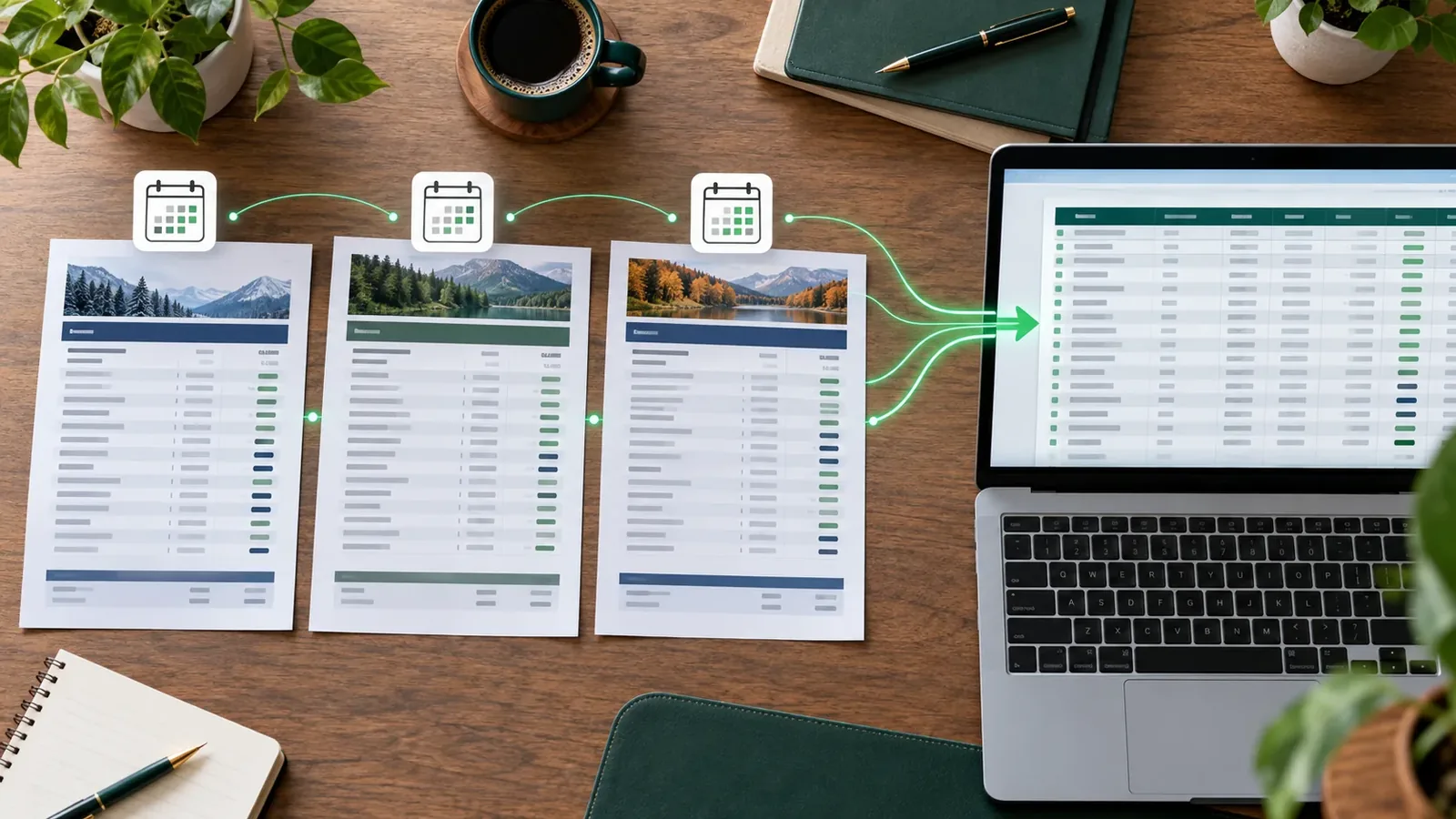
Sometimes you need only pages 3–5 of a long statement for a bookkeeper or a specific review. Splitting a PDF by page number is a document task; it does not extract transactions or hide information on the selected pages.
Before selecting pages
Open the original PDF and note the actual page numbers in the viewer. Printed statement page labels may differ from PDF page positions because of cover sheets or inserts. Check whether the requested transaction period spans a page boundary.
Extract the range
- Open the PDF split tool and select a bank statement.
- Enter page numbers or a range such as 3-5. You can combine selections with commas.
- Start the split and download the resulting PDF.
- Open the result and verify its first and last pages against the source.
The tool can also apply the same page selection to several PDFs and return a ZIP. Use that carefully: if one statement is shorter than the requested range, its result may fail or contain fewer pages than you expected.
Privacy and completeness check
Splitting leaves visible names, account numbers, and balances on retained pages. Review the result before sharing it. If you need only a transaction table, use the PDF-to-CSV converter instead. If you need one continuous PDF from several files, use the PDF merger.